
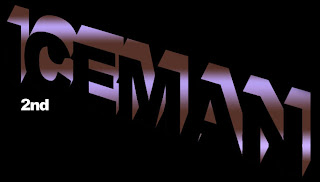
This week we are going to learn a nice effect like this one using Adobe Photoshop.
(Extra: have you found the hidden games in FLASH 8 click here).
 Click to see it in full view
Step 1:
Open your adobe photoshop with the large canvas, fill it with black background.
Step 2:
Make a nice 3D text effect that we study last week if you miss it just click here. Or just used a 3D tool software.
 Step 3:
Just don't forget to rasterize the 3d text effect(right click the layer->rasterize) that you have made. Then, with the Magic Wand Tool select the face of the letters and cut that part.
 Step 4:
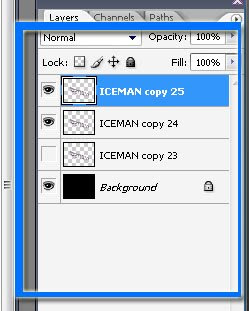
Make two copies of the layer(right click the layer->duplicate layer), and just hide the original layer or the last 3d text layer as shown in the screen shot below.
 Step 5:
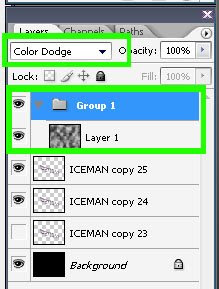
Next, create a new layer group(Just look for the folder icon in the bottom of the layer pallet), change the blending mode of this group to Color Dodge�. Create a new layer(shift+ctrl+alt+n or go to layer->New->layer) inside the group, And with the new layer Apply Filter -> Render -> Clouds. See screen shot below.
 Step 6:
 Step 7:
Repeat step 6 with two other bright colors, but you must placed it differently. To give more great effects.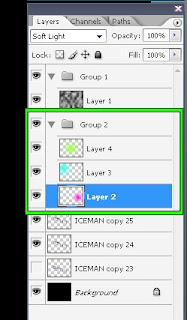 This is the result after making the 3 layer and changing the blending mode to the soft light
 Step 8:
Fot this step select the 3d text that you hide in step 4 unhide it. Then apply a Gaussian Blur of 15 pixel radius (Filter -> Blur -> Gaussian Blur) or higher just adjust it until you are satisfied.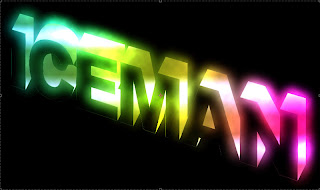 Step 9:
Add a new layer in the first group that we created above the render clouds and on this layer choose a nice brush(I'm using a star brushset)you can download it at www.qbrushes.com. the name is rabies star brush and use white to trace around the inside face of each letters.
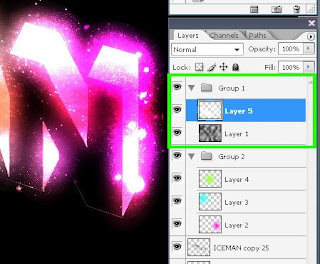

Step 10: Make a new layer between the two groups(put the new layer in the middle of the two groups). Then use Gradient Tool (Linear Mode), choose White(use foreground to transparent presets of the gradient), drag the Gradient tool from the bottom edges of the canvas to the middle of the canvas. Set the blending mode to Saturation.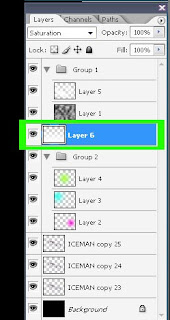
 Step 11: Create another layer and put it in the first group or in the group 1�.
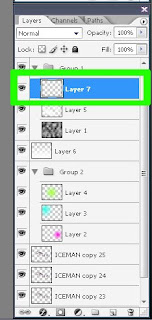 Step 12: Then use custom brush tool brush just like what we did in Step 8 (remember, use WHITE).
 Step 13: Then for the last step. Create another layer on the top of the layer that we created in step10 then use a nice large custom cloud brush, and draw a single cloud above the text. Then Apply a Motion Blur (Filter -> Blur -> Motion Blur) with an Angle of of -15. and a distance of 250 pixels(or just experiment it until you are satisfied). Then Change the Opacity to 30%� and apply a gradient overlay with the following settings:
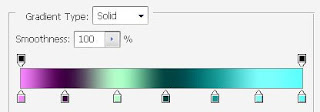 And the final result.....


Open your adobe photoshop with the large canvas, fill it with black background.
Step 2:
Make a nice 3D text effect that we study last week if you miss it just click here. Or just used a 3D tool software.
 Step 3:
Just don't forget to rasterize the 3d text effect(right click the layer->rasterize) that you have made. Then, with the Magic Wand Tool select the face of the letters and cut that part.

 Step 4:
Make two copies of the layer(right click the layer->duplicate layer), and just hide the original layer or the last 3d text layer as shown in the screen shot below.
 Step 5:
Next, create a new layer group(Just look for the folder icon in the bottom of the layer pallet), change the blending mode of this group to Color Dodge�. Create a new layer(shift+ctrl+alt+n or go to layer->New->layer) inside the group, And with the new layer Apply Filter -> Render -> Clouds. See screen shot below.

 Step 6:
Create another group(Just look for the folder icon in the bottom of the layer pallet) below the first group that we created, Create a new layer inside this group add a nice light color with the use of gradient tool (in Radial Mode) use foreground to transparent presets of the gradient tool and draw a soft edge glow. Then set the layer blending mode to the Soft Light�.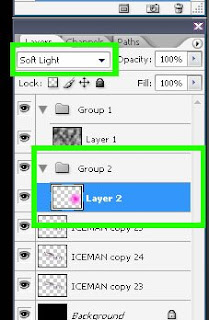 You are now able to see a nice effect.
 You are now able to see a nice effect.
 Step 7:
Repeat step 6 with two other bright colors, but you must placed it differently. To give more great effects.
 This is the result after making the 3 layer and changing the blending mode to the soft light
 Step 8:
Fot this step select the 3d text that you hide in step 4 unhide it. Then apply a Gaussian Blur of 15 pixel radius (Filter -> Blur -> Gaussian Blur) or higher just adjust it until you are satisfied.
 Step 9:
Add a new layer in the first group that we created above the render clouds and on this layer choose a nice brush(I'm using a star brushset)you can download it at www.qbrushes.com. the name is rabies star brush and use white to trace around the inside face of each letters.


Step 10: Make a new layer between the two groups(put the new layer in the middle of the two groups). Then use Gradient Tool (Linear Mode), choose White(use foreground to transparent presets of the gradient), drag the Gradient tool from the bottom edges of the canvas to the middle of the canvas. Set the blending mode to Saturation.

 Step 11: Create another layer and put it in the first group or in the group 1�.
 Step 12: Then use custom brush tool brush just like what we did in Step 8 (remember, use WHITE).
 Step 13: Then for the last step. Create another layer on the top of the layer that we created in step10 then use a nice large custom cloud brush, and draw a single cloud above the text. Then Apply a Motion Blur (Filter -> Blur -> Motion Blur) with an Angle of of -15. and a distance of 250 pixels(or just experiment it until you are satisfied). Then Change the Opacity to 30%� and apply a gradient overlay with the following settings:
 And the final result.....


44 comments:
Gi visit na tika! Visit also my site. Thank you!
Gi visit na tika! Visit also my site. Thank you!
have put your link back.
I am new to photoshop, I'll follow your blog and subscribe to it. Please give more tutorial. Thanx
Nice effect of lighting FX on 3D Text :) Keep it up!
Just freakin awesome man. I love looking at these tutorials and working them myself in photoshop they helped me come up with some great designs etc. Bookmarking this blog for sure!
hi sean supplee thanks pal..
im new to this animated world...will take your help to learn
I think you should visit my blog: nismet.blogspot.com, about design, publicity and illustration, have a nice day!
hi thanks for joining blog catalog groups discusion i have visited ur blog good job hope u to visit my site www.cooltips.co.cc
Thanks. I am new to your blog and found it wonderful.
Great Text effect. thank you for share
wow, this is more pretty. Very creative work I found...
I am happy to find this very useful for me, as it contains lot of information. I always prefer to read the quality content.
hello!! Very interesting discussion glad that I came across such informative post. Keep up the good work friend. Glad to be part of your net community.
The post is very nicely written and it contains many useful facts. I am happy to find your distinguished way of writing the post. Now you make it easy for me to understand and implement. Thanks for sharing with us.
Wow, nice post,there are many person searching about that now they will find enough resources by your post.Thank you for sharing to us.Please one more post about that..
I admire the valuable information you offer in your articles. University essays I will bookmark your blog and have my children check up here often. Dissertation writing service I am quite sure they will learn lots of new stuff here than anybody else! accounting assignment help | finance assignment help | C++ assignment help | statistics assignment help | pay someone to do your assignment | computer programming assignment
Awesome blog. Very informative. Your blog is very valuable from the blogger’s mind. Keep it up!
I have been looking for sites like this for a long time. Thank you!
well use to people. A great article post, this is something very interesting. A great concept that reflects the excellent thoughts of the writer.
wow great i have read many articles about this topic and everytime i learn something new i dont think it will ever stop always new info , Thanks for all of your hard work!
That’s absolutely fantastic titorials which can be easily used to improve our videos! Actually, I couldn’t even imagine before that effects like Milk could be created without 3D Max or similar software/
Thanks again, what a wonderful resource!
Teamwear Football
Very Informative ideas. my first time to join here. Great share thanks for the read!
cool! I like it nice informative article, Thanks for the post.
This article is very interesting and unique. I admire your efforts. I will come here to check new updates. Thanks for posting this information.
dissertation writing assistance
Wonderful article, thanks for putting this together! "This is obviously one great post. Thanks for the valuable information and insights you have so provided here. Keep it up!"
this tutorial is very good, but text should be more prominent color effects and all things are very good but text become very dull because of colorful effects around text. but good try keep it up
The post is very informative. It is a pleasure reading it. I have also bookmarked you for checking out new posts. thanks for showing my comment in your site.
website design
Likes enormously enhance the popularity with the internet site and using the perfect variety depend; lots of individuals will most likely be interested in your account. The companies that supply these companies, will supply you with non-automated or robot likes and provide you with significant Instagram likes. how to buy instagram likes The great detail concerning this will be the indisputable fact that these are typically instantly sent in your account meaning you do not need to wait that a terrific offer. And when you are a group, increasing your Instagram likes will likely be effective.
คือเครื่องสล็อตที่ได้รับความนิยมมากที่สุด: รูเล็ตเป็นหนึ่งในเกมคาสิโนที่ชนะได้ง่ายที่สุด และเราเข้าใจว่าทำไม โดยพื้นฐานแล้ว เกมนี้ขึ้นอยู่กับโชคเป็นส่วนใหญ่ ดังนั้นแม้ว่าคุณจะเป็นมือใหม่ สล็อตเว็บตรงpg คุณก็จะได้รับผลตอบแทนที่ดีจากการเดิมพันที่น้อยลง วัตถุประสงค์นั้นง่าย – คุณเดิมพันว่าลูกบอลขนาดเล็กจะตกลงบนวงล้อที่หมุนด้วยหมายเลขและสีช่องใด บนวงล้อส่วนใหญ่จะมีเลขสีดำ 18 ตัวและสีแดง 18 ตัว ไม่นับเลขศูนย์สีเขียว ดังนั้น คุณสามารถเดิมพัน
เวลาเช้า ตั้งแต่ 10.00 น. ถึง 13.00 น. โปรดทราบว่าสถานประกอบการเหล่านี้ต้องแต่งกายให้เหมาะสม "การตรวจสอบการปฏิบัติตามข้อกำหนดการแต่งกายจะดำเนินการที่ทางเข้าสถานที่ของเรา สล็อตเว็บตรงแท้ และการเข้าใช้จะขึ้นอยู่กับดุลยพินิจของฝ่ายบริหารและพนักงานของ Casino de Monte-Carlo" ตามเว็บไซต์ของ Casino de Monte-Carlo กางเกงขาสั้นและเบอร์มิวดา กางเกงยีนส์ขาด ชุด
ของผู้เล่นมี คาสิโนส่วนใหญ่มีเกมให้เลือกมากมาย ความหลากหลายนี้เป็นส่วนหนึ่งของสิ่งที่ทำให้การพนันคาสิโนน่าดึงดูดมาก แต่ก็อาจมากเกินไปเมื่อคุณเริ่มเล่นครั้งแรก สล็อตpgแท้ มีเกมมากมายให้เลือกเล่นจนยากที่จะรู้ว่าจะเริ่มต้นจากตรงไหน ในบทความนี้ เราจะกล่าวถึงปัจจัยต่างๆ ที่คุณควรคำนึงถึงเมื่อเกมที่นำเสนอ ข้อได้เปรียบนี้ไม่สามารถเอาชนะได้ และแม้ว่าจะเป็นไปได้ที่ผู้เล่นจะชนะหากพวกเขาโชคดี อัตราเดิมพันจะเข้าข้างเจ้ามือเสมอ บทความนี้
แต่ละคนที่ ได้วางเดิมพันเริ่มต้นและไพ่หนึ่งใบหงายหน้าเจ้ามือ ผู้เล่นห้ามแตะไพ่ใดๆ 5 หลังจากที่ผู้เล่นแต่ละคนได้รับไพ่ เจ้ามือจะเริ่มจากซ้ายของเขา/เธอในทิศทางตามเข็มนาฬิกา เว็บสล็อตแท้ เปรียบเทียบอันดับของไพ่ของผู้เล่นแต่ละคนกับไพ่ของเจ้ามือ และชำระเดิมพันเริ่มต้นทั้งหมด จากนั้นการเดิมพันเสมอกันทั้งหมด ต่อไปนี้จะใช้เมื่อพิจารณาว่าผู้เล่นชนะ แพ้ หรือรุก หากไพ่ของผู้เล่นมีอันดับสูงกว่าไพ่ของเจ้ามือ การเดิมพันครั้งแรกของผู้เล่นจะได้เงิน เดิมพันเสมอ (ถ้ามี)
ค่อนข้างเหมือนกับรูเล็ตออนไลน์ จะมีการจำกัดเวลาสำหรับการวางเดิมพันของคุณ เดิมพันในทุกรอบ และเจ้ามือสดจะหมุนวงล้อเมื่อเวลานี้หมดลง แบล็คแจ็คสดของเกมคาสิโนสดทุกประเภท แบล็คแจ็คสดอาจเป็นที่นิยมมากที่สุด สล็อตเว็บตรงแท้ และแน่นอนว่าไม่มีความน่าสนใจในชีวิตจริงในรูปแบบคาสิโนสดนี้ ตัวอย่างเช่น การเผชิญหน้ากับเจ้ามือคือหัวใจสำคัญของแบล็คแจ็ค ดังนั้นคุณจะยินดีที่พบว่า
เกมคลาสสิกในราคาเพียง $0.10 ต่อมือ สูงสุดไม่เกิน $600 ต่อมือ การจ่ายเงินสูงสุดคือ 40,000 ดอลลาร์เช่นกัน ทำให้เป็นหนึ่งในเกมบนโต๊ะที่ทำกำไรได้มากที่สุดที่คาสิโน Golden Nugget ไม่มีรหัสโบนัสเงินฝากคือ BONUSSPINS มูลค่า 10 ดอลลาร์ในนิวเจอร์ซีย์และฟรี 10 ดอลลาร์ในมิชิแกน นั่นคือเงินฟรีในบัญชีของคุณเมื่อสมัคร สล็อตpgแท้ ไม่ต้องใช้การฝาก รหัสเดียวกันนี้ยังทำให้ผู้เล่นได้รับ
Hold’em แบบไม่มีลิมิตในการเดิมพันที่หลากหลาย ห้องโป๊กเกอร์หลายห้องมี Pot-Limit Omaha และโป๊กเกอร์ประเภทอื่นๆ เช่นกัน หากต้องการเล่นเกม เพียงบอกพนักงานที่เคาน์เตอร์ด้านหน้าว่าคุณต้องการเล่นเกมใด เว็บสล็อตแท้ หากมีที่นั่งว่าง คุณจะสามารถเริ่มเล่นได้ทันที หากไม่มีที่นั่งว่างในทันที คุณจะอยู่ในรายชื่อรอ เมื่อที่นั่งของคุณว่าง พนักงานจะเรียกชื่อคุณ และคุณจะถูกพาไปที่โต๊ะ
สาเหตุและวิธีแก้ปัญหาของชีวิตทั้งหมดนั้นดีสำหรับคุณ ตราบใดที่ เพราะเป็นแก้วของฝ่ายตรงข้าม ในตอนกลางคืนคุณจะพบกับผู้เล่นที่สนุกสนานมากขึ้นที่เต็มใจที่จะเล่นสองสามช็อตก่อนที่จะโกยชิปลงในหม้อ สล็อตเว็บตรงแท้ บรรยากาศการพนัน: ผู้เล่นสันทนาการที่เล่นโป๊กเกอร์สดในตอนกลางคืนไม่เพียงทำเพื่อความรักในเกมเท่านั้น พวกเขาต้องการเล่าเรื่องในตอนเช้าให้เพื่อนร่วมงานฟัง หากคุณฉลาด คุณสามารถให้ทั้งเรื่องราวที่พวกเขาต้องการและ 'เรียกเก็บเงิน'' ตามนั้น
หากพวกเขาต้องทำงานให้ดี ชื่อเสียงของคุณ: ตามที่กล่าวไว้ข้างต้น การมีเพื่อนในโลกโป๊กเกอร์นั้นคุ้มค่า และวิธีที่ดีที่สุดในการ ในด้านดีของพนักงานคาสิโนคือการเป็นคนให้ทิปที่ดี เห็นได้ชัดว่าการเป็นผู้ให้ทิปที่ดีไม่ได้ทำให้คุณได้ไพ่ที่ดีกว่าหรือได้เปรียบที่ไม่ยุติธรรมในเกม แต่สามารถให้ผลประโยชน์ที่ยอดเยี่ยมแก่คุณซึ่งผู้เล่นที่ใจดีน้อยมักไม่ค่อยเห็น สล็อตpgแท้ ที่ Upswing Poker เราพบว่าการให้ทิป $1 ในหม้อส่วนใหญ่ระหว่าง $25 ถึง $100 ก็เพียงพอแล้ว เมื่อหม้อมีขนาดเพิ่มขึ้น คุณสามารถให้ทิปเพิ่มขึ้นอีกเล็กน้อยได้ตามสบาย ในตอนท้ายของวัน มันขึ้นอยู่กับคุณว่าคุณต้องการให้ทิปมากน้อยเพียงใด ตราบใดที่
เป็นฉากในภาพยนตร์เจมส์ บอนด์บางเรื่อง คุ้มค่าแก่การเยี่ยมชม! Casino de Monte Carlo ให้บริการเกมคาสิโนแบบดั้งเดิม เช่น รูเล็ตยุโรปและอังกฤษ Chemin de Fer Punto Banco และอีกมากมาย Sun Casino หากเกมคาสิโนสไตล์อเมริกัน เว็บสล็อตแท้ เช่น Poker, Craps, เกมสล็อต หรือ Blackjack เป็นเกมที่คุณต้องการมากกว่านั้น Sun Casino เป็นสถานที่สำหรับคุณ! ลองนึกถึงแอตแลนติกซิตี้หรือลาสเวกัส… แต่ในยุโรป! แม้ว่าโปกเกอร์จะไม่ใหญ่เกินไป
หล่านี้อยู่ห่างจากคาสิโนโดยใช้เวลาเดินไม่เกิน 5 นาที และมีทัศนียภาพที่งดงาม บริการที่โดดเด่น และห้องพักที่สะดวกสบาย เดินต่ออีกเล็กน้อยประมาณ 20 นาทีก็จะถึงเลอ เมอริเดียน บีช พลาซา สล็อตเว็บตรงpg ซึ่งมีสระว่ายน้ำที่สวยงาม ร้านอาหารที่น่าตื่นตาตื่นใจมากมาย และทำเลที่ไม่มีใครเทียบได้ การแต่งกาย หากคุณต้องการสัมผัสความหรูหราและความยิ่งใหญ่แบบยุโรป มอนติคาร์โล
ถึงได้ง่าย เนื่องจากไม่มีกฎหมายการพนันเกี่ยวกับเว็บไซต์เกมในต่างประเทศ ซึ่งหมายความว่า Monegasques พื้นเมืองสามารถเล่นเกมโปรดและวางเดิมพันได้จากทุกที่ทุกเวลา อย่างไรก็ตาม สล็อตpgแท้ มีความเสี่ยงที่ฝรั่งเศสอาจขยายอำนาจในเรื่องนี้รวมถึงโมนาโกด้วย สิ่งนี้จะส่งผลให้การเข้าถึงเว็บไซต์การพนันออนไลน์จากภายในประเทศสิ้นสุดลงอย่างแน่นอนตั้งแต่การเล่นเกมของ
ของผู้เล่น เช่นเดียวกับผู้เล่น ตำแหน่งที่จะกำหนดผู้เล่นสำหรับการให้คะแนน วิธีเล่นแครปส์ เกมแครปส์มีแง่มุมที่น่าตื่นเต้นมากมาย แนวคิดของการเล่นลูกเต๋าชนิดหนึ่งคือการทอยเลข (แต้ม) ด้วยลูกเต๋าสองลูกแล้วทอยเลขเดิมอีกครั้งก่อนที่จะทอยเจ็ด เว็บสล็อตแท้ ผู้ที่ทอยลูกเต๋าที่โต๊ะเล่นลูกเต๋าชนิดหนึ่งเรียกว่า "ผู้ยิง" เมื่อมีตัวเลขกำกับด้วย "ลูกเป็ด" หมายความว่าตัวเลขนั้นคือ "แต้ม" ของเกม นี่
หากการเชื่อมต่ออินเทอร์เน็ตของคุณไม่ดี ประสบการณ์การเล่นเกมของคุณก็น่าจะแย่เช่นกัน – หรือแย่กว่านั้น คุณอาจไม่สามารถเล่นได้เลย เมื่อคุณทราบแล้วว่าคุณมีฮาร์ดแวร์อินเทอร์เน็ตที่เหมาะสม เช่น เราเตอร์ที่ดีในการเชื่อมต่ออุปกรณ์ของคุณกับอินเทอร์เน็ต คุณต้องดูฮาร์ดแวร์ที่คุณต้องใช้ในการเล่นเกมคาสิโน สล็อตพีจีเว็บตรง ไม่ว่าจะเป็นคอมพิวเตอร์ อุปกรณ์พกพา หรือทั้งสองอย่างฮาร์ดแวร์
Post a Comment